

Setup DB2
for authenticating extensions
In this chapter you can learn how to authenticate SIP extensions using a DB2 database server with your Ozeki Phone System XE. You can see the installation steps, the database connection string, the database connection type and the recommended database table layout for DB2 database.
After you have followed this guide, you will be able to authenticate SIP extensions with DB2 database server.
During the configuration you should choose the following database connection type:
You should use the following database connection strings:
If you use a TCP/IP connection:
Initial Catalog=MyCatalog;Package Collection=MyPackageCollection;Default Schema=MySchema;
User ID=MyUsername;Password=MyPassword;
If you use APPC connection:
Initial Catalog=MyCatalog;Package Collection=MyPackageCollection;Default Schema=MySchema;
User ID=MyUsername;Password=MyPassword;
The database connection string has to be modified to match your database.
The connection string and the connection type should be entered on the Database Authenticator SQL API configuration form.
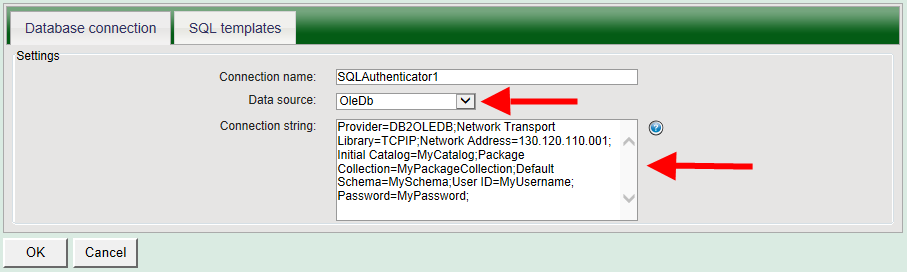
Figure 5 - Specifying the connection string for the DB2 database
The following figure shows the SQL queries that allow you to verify if a SIP account is available or not in your database.
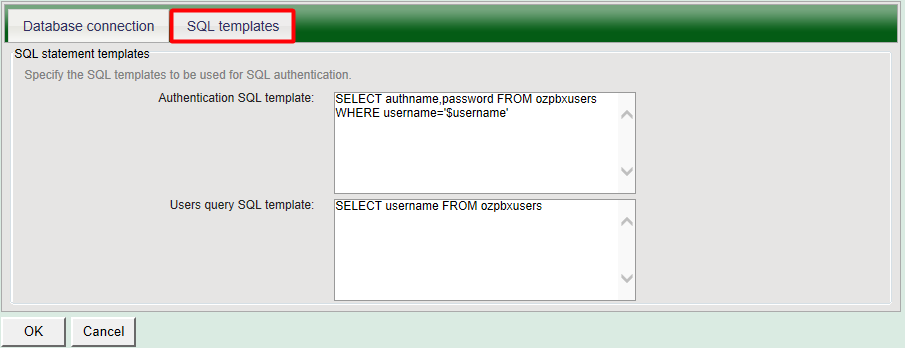
Figure 6 - SQL queries for authenticating
After the Database Authenticator SQL API has been configured in the Ozeki Phone System XE, you need to create the database tables for Database Authenticator SQL API. Use the following table layout:
-- -----------------------------------------------------
-- Table `OzekiPBX`.`ozpbxusers`
-- -----------------------------------------------------
CREATE TABLE ozpbxusers
   (authname     VARCHAR(45) NOT NULL,
    username     VARCHAR(45) NOT NULL,
    password     VARCHAR(45) NOT NULL,
    PRIMARY KEY (authname)}
If you have any questions or need assistance, please contact us at info@ozekiphone.com.
Dig deeper!
People who read this also read...